
Scheduling a ride on Uber
Sometimes, it can be helpful to schedule a ride ahead of time. However, your voucher will not automatically be applied on scheduled rides. When you schedule a ride ahead of time, the following message will appear:

To work around this error message, follow the steps posted below to ensure your voucher applies to scheduled Uber rides. If you forget to follow these steps, use Uber’s retroactive refund tool to request an instant refund.
STEP ONE
1. Schedule the ride.

STEP 2
2. When the driver is assigned or while the ride is in progress, apply the voucher to the ride by clicking ‘Switch’ link
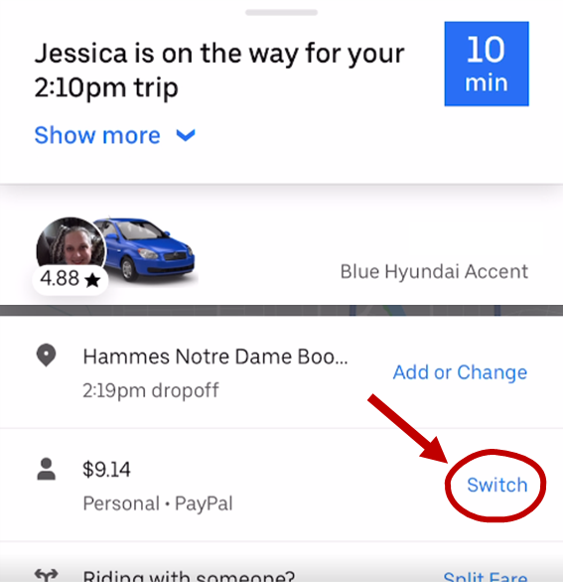
Toggle on the voucher you want to use. ***NOTE: You cannot use Google or Apple Pay for rides scheduled in advance. The Uber app prevents riders from switching their payment when Apple or Google Pay is used for rides.***

STEP 3
The discount will not show during the ride, but will be applied with the ride is finished

Need to request a refund?
Open the Uber App and tap the Account/Profile icon.
Tap Help > Trip Issues and Refunds.
Select the specific trip.
Tap Get Trip Help and select "I had an issue with my voucher" (if you don't see this, tap "More Options").
If the ride is eligible, you can simply tap Apply Voucher for an instant refund
Want to prevent voucher errors?
Follow these steps :
Check their backup payment method: Ensure your personal card is up to date and has no blocks.
Confirm the Voucher is selected: Before confirming the trip, double-check that your voucher is selected in the payment section of the app.